To start, I went to my browser and opened Gmail, where I navigated to the “Labels” section located in the inbox’s side menu. From there, I selected the “+” button to create a new label and begin organizing the emails in my inbox.
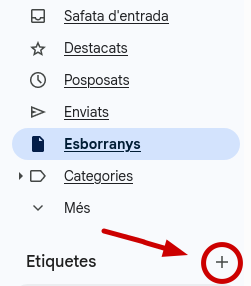
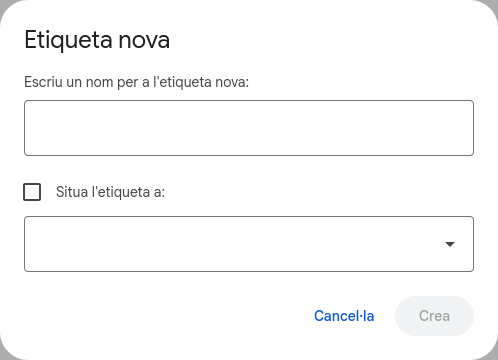
Selecting the “+” button opens a window where I can enter the name of the new label. This option allows you to create a custom structure to categorize emails according to your needs. I have chosen the label names that seemed most useful for organizing the emails I receive for the remainder of the course.
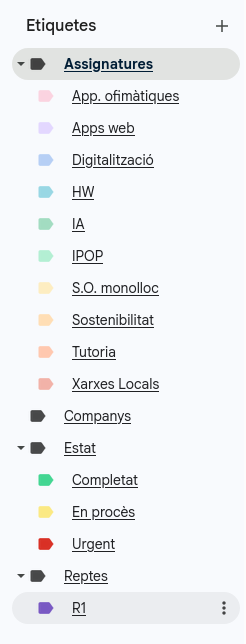
I have created four main label groups, each with a specific function to facilitate email organization.
The first is “subjects,” with a sub-category for each of the subjects we have. Another is “classmates,” intended for emails related to group members and teamwork. The third group is “status,” which allows emails to be classified according to task progress—”Completed,” “In progress,” and “Urgent”—so they can be tracked by priority. Finally, I created the “challenges” group, to which I added the sub-label “R1.”
Once the labels were created, I tested how they work by applying them to various emails in my inbox. This way, each email is identified with the corresponding label, and I can quickly recognize which group it belongs to without having to open it.
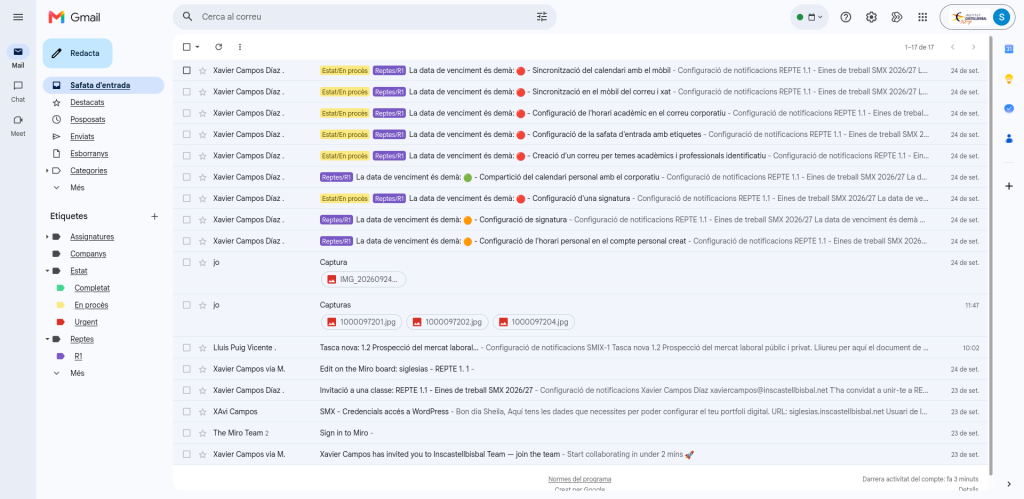
This way, I can organize the emails I receive more efficiently, as labels allow me to filter them based on what I am looking for. This helps me keep my inbox tidier and streamline the management of my emails.
